Every so often I end up making a new list of low-priority things I have been meaning to do. I often do this in the Reminders app on iOS, and I always do it with a plan to regularly check that list and, as I imagine it, occasionally spot some little task that feels just right in the moment. Instead, I forget about those lists, I only rarely complete those to-dos, and then only when something else brings one of them to mind. As the calendar turns over, even I can’t resist a little bit of a hopeful attempt at a productivity hack, so I’m going to see if I can set myself up for more success in 2025.
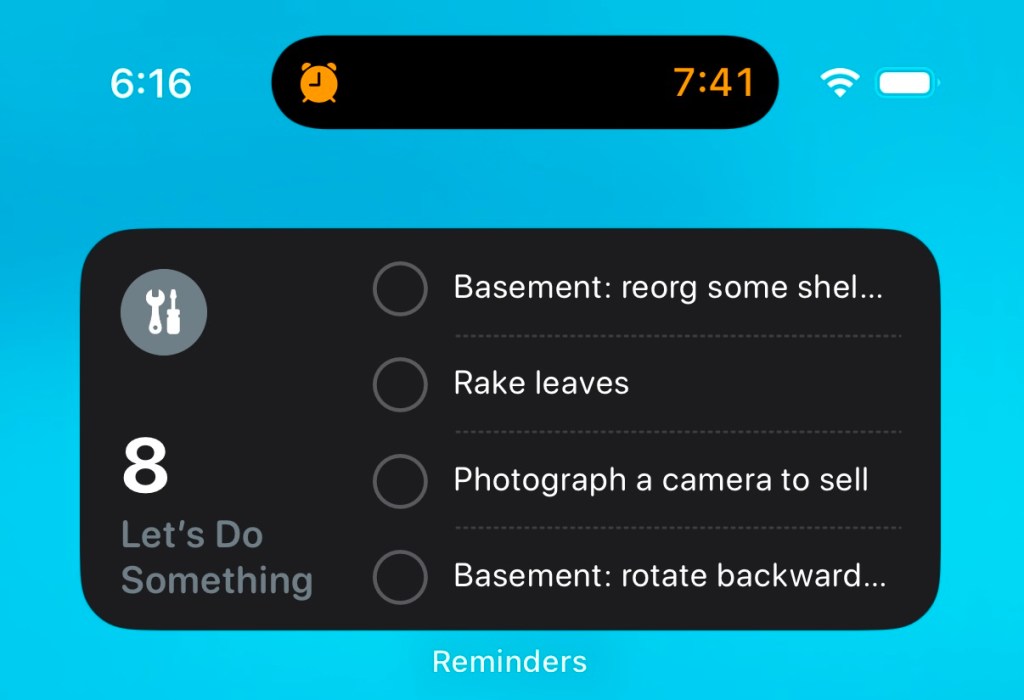
What I’m doing is putting a large widget on my phone’s home screen with the current iteration of this list. The point, for me, is that the full list includes a relatively large number of varied things to do, and that these tasks have no particular priority or order in which they should be done. I want to glance at this list one day and think, “yeah I can bundle up some clothes to donate”; on another day decide to put up some shelves; and on yet another feel up to preparing some cameras for eBay.
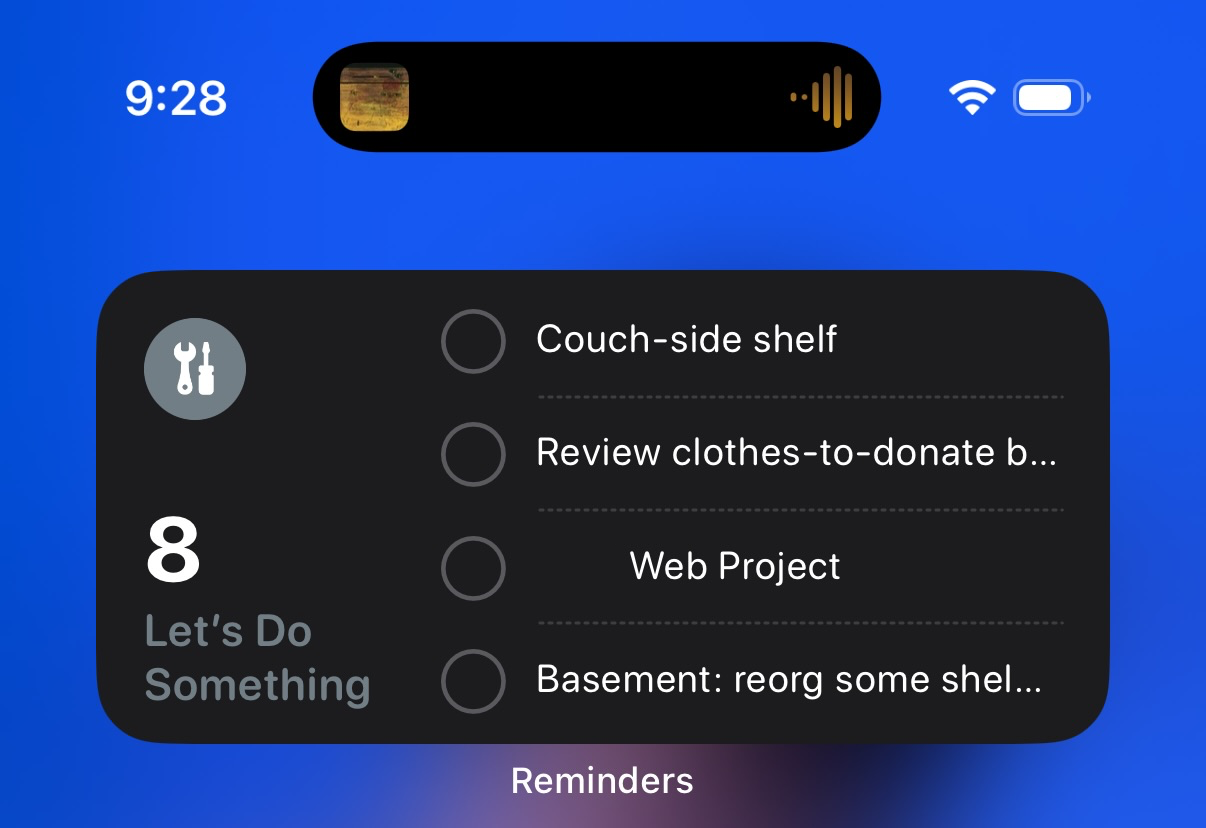
But the widget only show four items, and neither the Reminders app nor its widget has a “shuffle” mode. I needed a way to randomize the order of this list so that I would be presented with a different set of four items every day or so. I created a simple Shortcut to do that. Here’s what it does:
- Shortcuts has a built in method to get items from a Reminders list. Even better, the Sort option for this lets you sort them in random order. So already we’ve got our randomized list of pending to-do items!
- The problem is preserving that random order: there doesn’t appear to be a way to have a Shortcut set the manual sort order of a list of reminders.
- My first attempt to solve this was to iterate through the randomized list, adding a new copy of each to-do item to the list and deleting the original—thus rebuilding the list from scratch each time. But frustratingly if understandably, it’s impossible to have a Shortcut delete Reminders items without prompting the user to approve the deletion each time. Completing each item instead of deleting it would mean amassing a huge pile of duplicate completed items in the list, which felt wrong.
- This means we have to find a way to save the randomized order by only editing the existing items. The Due Date field is a supported Sort field in the Reminders app, and it can also be set by a Shortcut. I’m not using Due Date for this list of low-priority / no-due-date tasks, so I’m free to use it as a blunt way to order reminders. So now I loop through the randomized list of reminders, and set the Due Date for each one to be:
[current date] + (120 + [“repeat index” of the randomized list]) days
This ends up setting one item to be due in 121 days, another in 122 days, etc, etc. I picked 120 days as an interval far enough out that I won’t usually be bothered by seeing these reminders in the Calendar app.
- That’s it for the script, so now we just need a way to run it regularly. I use a daily sleep schedule on my phone, so in the Automation tab of Shortcuts I already had a “When Waking Up” entry. I set this to run my Shortcut.
This means that the list gets reordered soon after I wake up, but the widget itself doesn’t update immediately. For me that’s OK; again, none of these tasks are time-sensitive and I just want to see a new set of them out of the corner of my eye every so often. A few days in, I can confirm that the technical side of the system works. I haven’t actually done anything from the list yet; if anything, so far this has only prompted me to add more reminders to it. Cynically, I think most productivity hacks only function to perpetuate themselves, so if that’s all this accomplishes I can’t say I’ll be surprised.

But hope springs eternal! If you’d like to try this, here’s a link to the Shortcut—you’ll need to set the Reminders list to your own list to use. I’ll try to revisit this is 6 months or so to report on how my completion count is looking.
 Intended Effect
Leave a comment